Home → Getting Started → Printer Friendly Version
Getting Started
- 1. Setting up your account
- 2. Creating Your Listing
- 3. Launch your Listing
- 4. Posting Your Listing (if not using launcher)
1. Setting up your account
1.1. Create a Seller Profile
Navigation:
Listings > Utilities > Seller Profiles
Click Create New Profile button.
Overview:
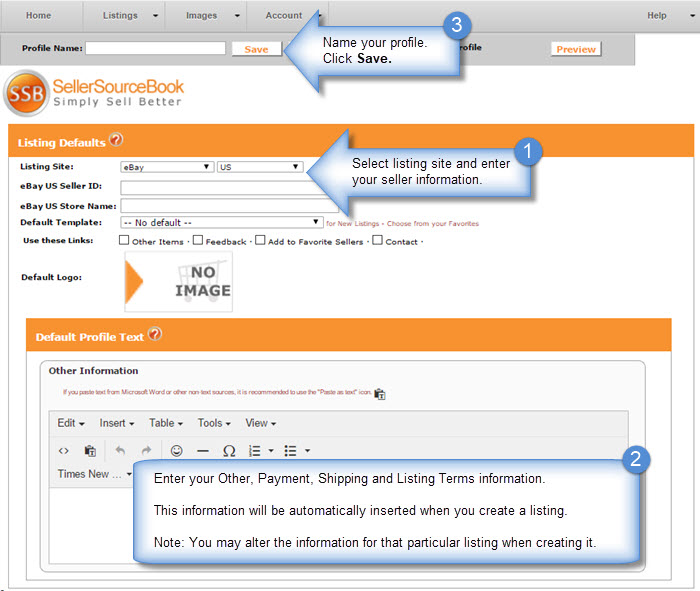
You'll need at least one Seller Profile to use our program. When making a profile, you must select a Listing Site (such as eBay, Bonanza, etc.) and enter your Seller ID (your username on that site). Important: If listing to Motors Parts & Accessories, choose Motors for your listing site.
All other fields are optional. If there is information you would like to appear in each of your listings, you can put it in your profile. The profile's information will be inserted automatically into each listing you create using that profile.
If you are not already on the Listing Defaults page, please click on Create New Profile to get started.
How to Create a Seller Profile:
Step 1: Select a Listing Site and enter your Seller ID.
Step 2 (Optional): Enter any other information you wish to include in your profile.
Step 3: Enter a Profile Name and click the "Save" button.
1.2. Get a Token
Navigation:
Listings > Utilities > Seller Profiles
Overview:
If you will be listing to any of the listing sites supported by our Listing Launcher (eBay US, UK, CA, AU, Motors US (parts only), or Bonanza.com), or to Etsy US, you will need to get a token for your Seller ID. A token allows Seller Sourcebook to launch listings on your behalf, without you needing to reveal your listing site login information to us!
When you make a profile for a Seller ID that does not yet have a token, you will be automatically redirected to retrieve a token for the appropriate listing site. However, if you cancel the retrieval process, you can still obtain a token from the Seller Profiles page. If you have at least one profile for a supported listing site, you will see the Launcher Token Management table appear below your Profile List. From this table, you can get a new token or refresh an existing one.
The following section contains a video showing how to obtain a token for eBay. For more information on how to obtain tokens for eBay, Bonanza, or Etsy, please see the Related Pages section at the end of this article.
 How to get an eBay token:
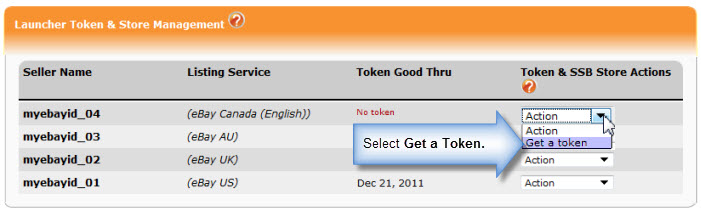
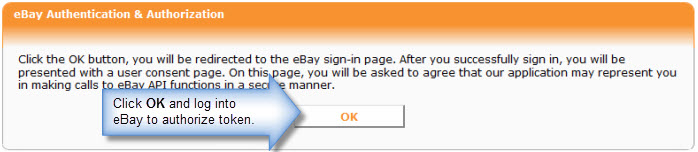
When you have successfully obtained your token, you will be brought back to the Seller Profiles page and an expiration date for your token will appear. When this token expires, you will need to use the Refresh Token action.
2. Creating Your Listing
2.1. Select A Template
Navigation:
Listings >Prepare > New Listing
How to select a template:
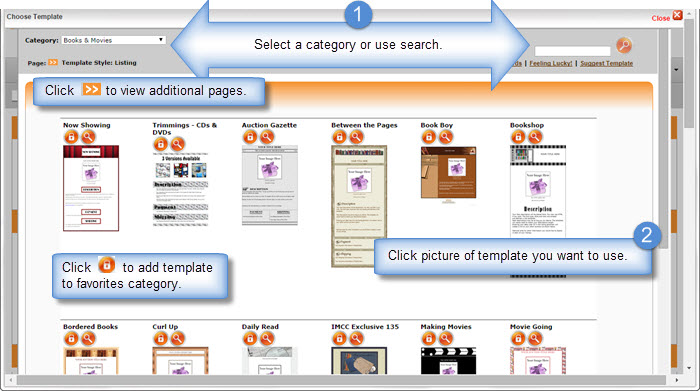
On the Choose Template screen, you may browse templates by category or use our search function to find a template you wish to use in your listing.
2.2. Enter Your Listing Details - Advanced Lister
Navigation:
Listings > Prepare > New Listing
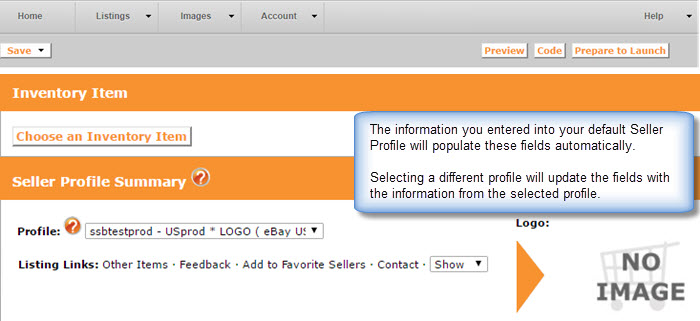
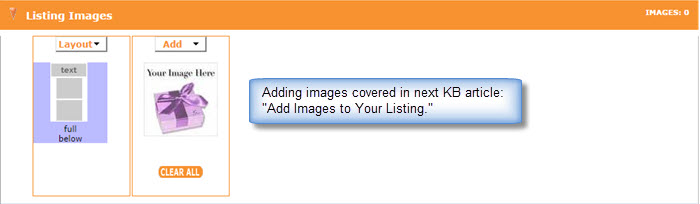
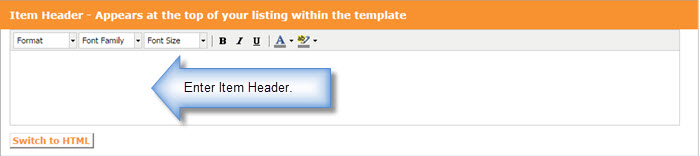
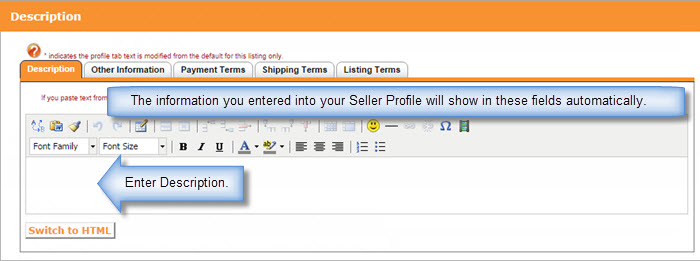
How to enter your listing details:
After selecting your template you will be on the Listing Generator screen.

2.3. Add Images to Your Listing
Navigation:
Listings > Prepare > New Listing
How to Add Images to your listing:
After selecting your template you will be on the Listing Generator screen. In the Listing Images section you can add the images you wish to place in your listing.
There are 3 different methods for adding images to your listing:
1. Add Images From Image Manager:
You can upload your images in advance using our bulk image uploaders. Then, when creating a listing, you can select from the images you have already uploaded to your account.
2. Upload
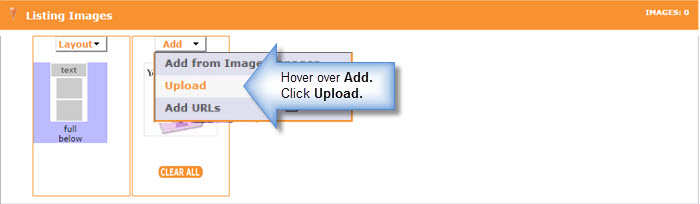

3. Add URLs:
This option is used if your images are hosted at another image host.
3. Launch your Listing
3.1. Launch Your Listing to eBay US, AU, CA, UK, eBay Motors US, or Bonanza
Overview:
Our Listing Launcher currently supports launching listings directly to eBay US, AU, CA, UK, and Motors US (parts & accessories only), as well as Bonanza. For instructions on how to launch your listing to one of these sites, click on the appropriate link in the following section (or in the list of Related Pages, at the end of this article).
Listing Launcher Tutorials:
eBay US: View our full SSB US Launcher Tutorial
eBay AU: View our full SSB AU Launcher Tutorial
eBay CA: View our full SSB CA Launcher Tutorial
eBay UK: View our full SSB UK Launcher Tutorial
eBay Motors US: View our full SSB eBay Motors US Launcher Tutorial
Bonanza: View our full SSB Bonanza Launcher Tutorial
4. Posting Your Listing (if not using launcher)
4.1. Copying Listing Code
Navigation:
Listings > Prepare > Saved Listing Drafts
Click  next to the listing draft you want to copy code for.
OR: Click on the Code button button while in the Listing Generator.

If you do not see a Code button within the Listing Generator, please navigate to Account > Site Preferences and uncheck the option, Remove 'Code' button if token exists.
Overview:
To put your SSB created listing on eBay via their Sell Your Item Form, insert it into TurboLister or on to any other auction site you must first copy your completed listing code.
How to Copy Listing Code:
We provide several methods to get your listing code. The method you choose is up to you and can be dependent on what web browser you use.
NOTE: When you copy the HTML code for your listing it will be copied to your computer's clipboard. The clipboard is an invisible area on each computer used to temporarily store cut or copied information. The Clipboard contents are erased when new information is placed on the Clipboard or when the computer is shut down.
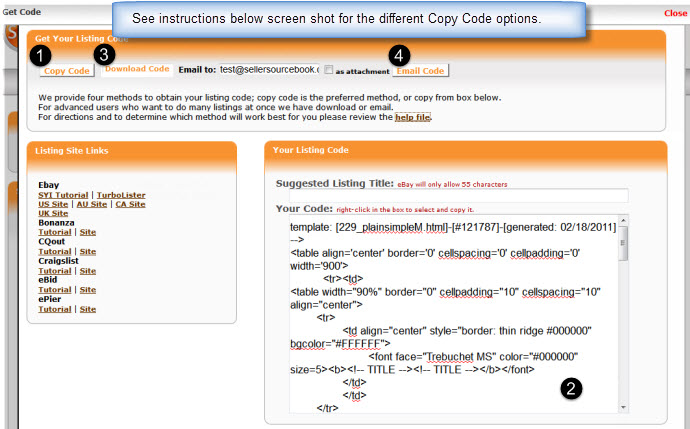
Option One: Copy Code Button - Recommended for PC users with Internet Explorer or the AOL web browser.
On the Get Code screen click the Copy Code button. The button will will say Code Copied when the code has been copied to your clipboard.
Option Two: Your Code Box - Recommended for PC users with Fire Fox or MAC users.
Step One: Click your mouse in the Your Code box, the code in the box will become highlighted.
Step Two: Copy the code to your clipboard. PC Users: right-click & choose copy Mac Users: Ctrl-click & choose copy.
Advanced Options:
Option Three: Download Code
If you are not using Internet Explorer or are using a Mac you may choose to download your code. Right click the "Download Code" link and choose "save to disk." The file will be saved as templatecode.txt.
NOTE: Please open the code file in Notepad. It is not recommended that you use Word.
Option Four: Email Code:
You may choose to have your listing code emailed to you. Your email address will be displayed in the "Email to:" field. Click the Go button.
AOL, HOTMAIL, MSN, YAHOO or ANY WEB BASED EMAIL CUSTOMERS should NOT use this option.
These services will not display your code correctly. Emailing code to any of these services may result in missing listing photos, template graphics, and text formatting and color.
NOTE: Please open the code file in Notepad. It is not recommended that you use Word.
UPDATE: As of 09/12/2018 emailing code as an attachment to an email is not supported.
4.2. Using Copied Listing Code